Get Your AI App Ready
For this workshop, we'll use Claude Code in the Claude desktop app. Follow the steps below to get your app set up before we start.
Three things to do before class
- Get a paid plan that includes your coding agent.
We recommend Claude Pro for this workshop. If you already have a paid Claude plan with Code access, use that account. Check Claude's current plans and usage limits before buying. If you're comfortable with Cursor or Codex, you can use your existing setup instead.
- Download and sign in to the desktop app.
Get the Claude desktop app for your computer, install it, and sign in with the account that has your subscription. This is the installed app, rather than a browser tab.
-
Open Code and check that Local is available.
The desktop app includes Claude Code, so you don't need to install Claude Code separately. Your computer may still need supporting tools; see the setup note below. If Code is missing, update and restart the app and check that you're signed in with the right account.
Find Code at the top left. In Audrey's screenshot, the Code button looks like </>and is outlined in red. Click it to open Code.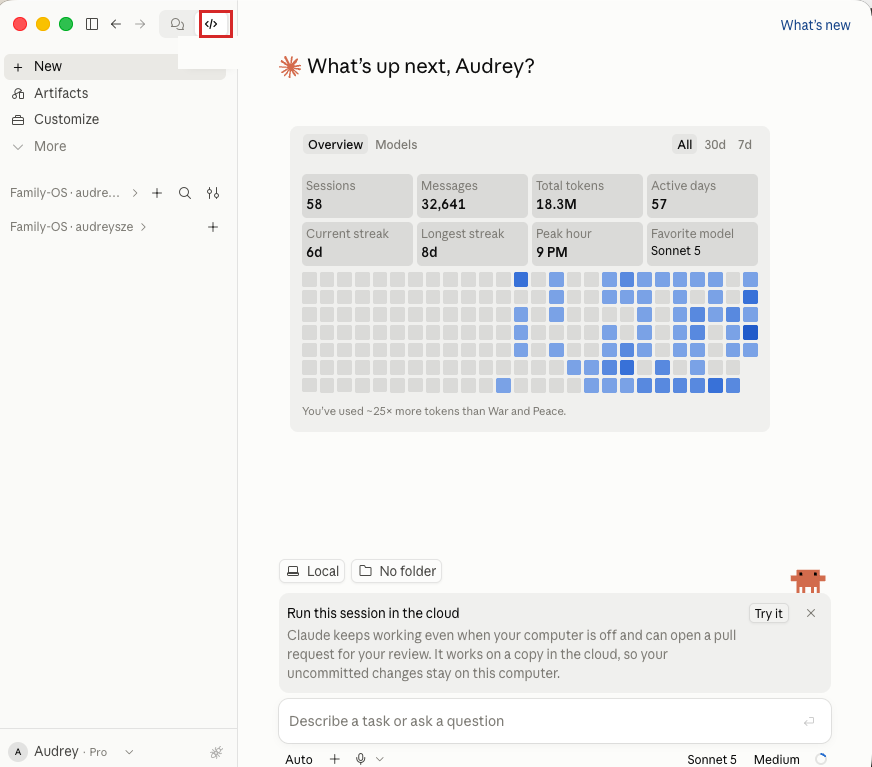
Look for Local and the folder chooser above the message box. The folder button says “No folder” in this screenshot; yours may say “Select folder” or show a folder you've used before. You don't need to choose the Household OS folder yet. 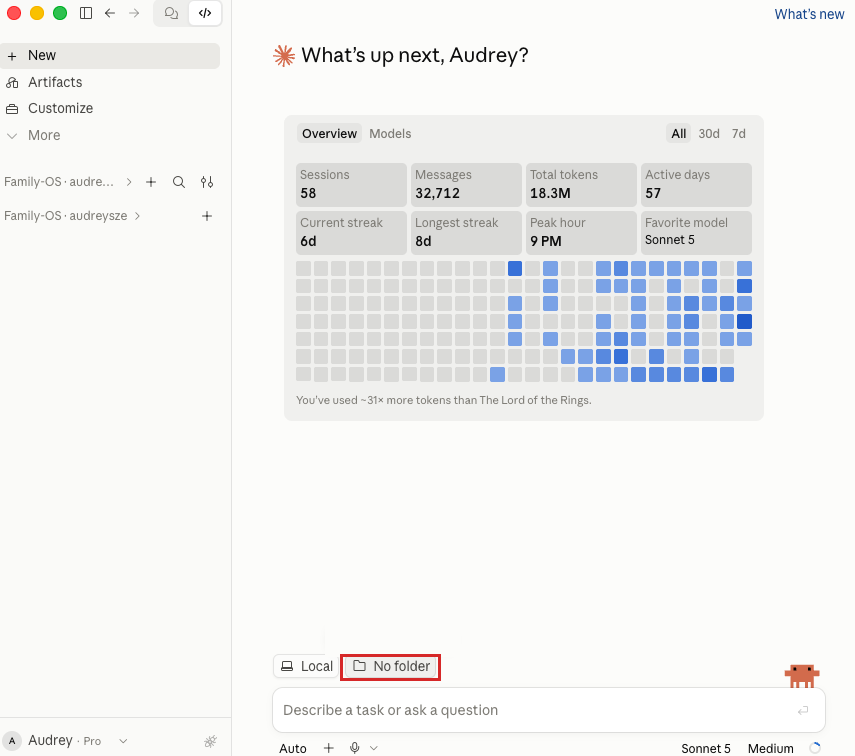
These screenshots show Audrey's Mac. Labels and layout may vary with your app version. Click either image to see it at full size.
If you can open the desktop app, access Code, and find the Local folder chooser, you're all set! We'll download and select the Household OS folder together during the workshop.
The official desktop setup guide has the current screens and installation steps. On either Mac or Windows, you may be prompted to install supporting tools. On Mac, a Git prompt may lead to Apple's Command Line Tools installer. On Windows, you may be asked for Git for Windows. If you see a Git requirement, follow the official troubleshooting steps for your computer, then reopen Claude and check that Code works. If you're stuck, email Audrey at audreychang319@gmail.com and Hilary at hilary.gridley@gmail.com.
Using a different app?
The workshop's instructions use Claude Code. In Cursor or Codex, the equivalent starting point is a conversation working with a local folder that the agent can read and edit. The labels and available connections will differ; use your app's setup guide.
You can follow the same method: provide context, describe the task, review the output, and save reusable instructions. Advanced workflow capabilities depend on your app's available browser tools.
You don't need to connect your accounts yet
You can build the meal planner we cover in this workshop by simply describing your schedule and sharing a few recipes. Decide what you're comfortable sharing before adding email, calendar, or shopping access. Read Hilary's guidance on privacy and permissions when it comes to AI →