Set Up Your Household OS
A small set of useful notes about your household, plus instructions you can reuse. We'll create it together during the workshop.
What's a context directory?
A folder of files about you and your family — who's in it, what matters to you, how you run things. When you work in this folder and tell AI to use it, those notes give it a starting point without you re-explaining your life every time.
Depending on your setup, AI can also keep the folder updated as things change — which means you're not manually maintaining it yourself.
Why bother?
What's Markdown? Do I need to convert everything?
Markdown is ordinary text with a few formatting shortcuts: # makes a heading and a dash starts a list. Files ending in .md use this format. The setup interview is an example you can read below.
You do not need to turn everything into Markdown. Keep existing documents in formats your app can read. If it cannot read a file, ask for help extracting the useful parts. Claude can write the new notes for you; you don't need to learn the formatting.
Choose what belongs in this folder
Start with practical context such as food preferences and household routines. Use roles and approximate ages, skip anything you don't want to share, and keep passwords, account numbers, and medical records out of this workshop folder.
The interview asks AI to work within this folder and save relevant updates. A folder selection and written instructions are not a security boundary by themselves: review your app's permissions too. Read Choosing what to share →
Set it up
-
Download the folder.
Download the Household OS starter folder. This download comes directly from this site; no Google Drive account is needed. Open the ZIP in Downloads (on Windows, choose Extract All).
Use this workshop download for the updated interview shown below. Already have the original Drive folder? Download the updated Setup Interview.md into that folder and replace only the old interview, keeping your existing household notes.
-
Take a look at what you downloaded.
Open Household OS in Finder (Mac) or File Explorer (Windows). You'll see six empty folders and
Setup Interview.md. The folders will fill up as you work; you don't need to populate them in advance.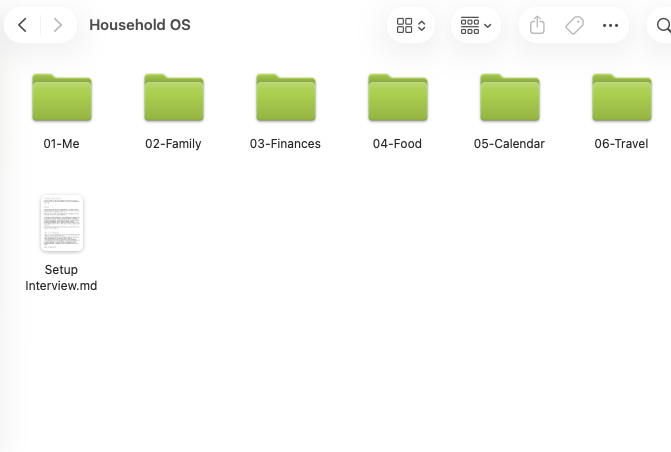
Read the setup interview: these are instructions to the AI
Nothing mysterious: the file tells the AI what to ask, what to save, and when to stop. In the text below, “you” means the AI. You will launch it with the short prompt in step 3f.
Setup Interview.md# Household OS Setup Interview The user is getting their Household OS started: a folder of context and reusable instructions that helps AI support their household. You are the AI assistant. You will write files directly in the selected Household OS folder as the user answers, within the app's permissions. ## Before the interview Confirm that the selected folder is Household OS. If it is not, help the user select it before reading or writing files. Read any existing household instructions and relevant profiles first; do not overwrite their work or ask for information already provided. Explain the following in ordinary language before asking for personal information: - Answers are optional; the user can skip any question or use fictional examples. - Roles such as Adult 1 and Child 1, and approximate ages, are enough. - Meal preferences can be useful context. Ask only for dietary restrictions the user is comfortable sharing. - Do not request passwords, account numbers, government IDs, home addresses, school names, or medical records for this exercise. - Files on a laptop are not the same as an offline AI: information shared with the assistant may be processed by its provider. Sharing a document once does not guarantee immediate deletion by that provider. ## Interview Ask one question at a time. Wait for the answer before continuing. Keep follow-ups brief and relevant. Explain that the user can say "skip" or "that's enough" at any time. ### Part 1: The household Ask the user: 1. Which roles and approximate ages make up the household, including any pets? 2. Who else is regularly involved, such as grandparents or a caregiver? Roles are enough. 3. Are there food preferences, allergies, or dietary restrictions the user wants the assistant to account for? This is optional. 4. Are there current interests, routines, or practical needs for any household member that would help with everyday planning? The user can keep this general. ### Part 2: About the user Ask the user: 1. What should the assistant know about how the user operates: how they make decisions, what they care about getting right, or pet peeves? 2. What are the user's current priorities outside of work? ## Write the files As answers arrive, create or update only the files supported by those answers. Do not invent facts or create empty profiles. Preserve unrelated existing information. Use roles for filenames and keep every path inside the selected Household OS folder. - 01-Me/About.md: the user's priorities and ways of working. - 02-Family/Household-Overview.md: household roles, routines, and any food preferences the user chose to share. - 02-Family/[Role].md: a file for each person only when there is useful additional context for that person. Use simple Markdown headings and lists. Label temporary situations as temporary; do not turn this week's plans into permanent preferences. Write files directly rather than asking the user to copy text into them. If file access is unavailable, explain what permission is missing; never claim a file was saved when it was not. ## Keep the Household OS useful For Claude Code, create or update CLAUDE.md at the root of this Household OS folder with these standing instructions. For another agent, use its supported project-instructions file, checking its documentation if needed. Preserve any existing instructions: - Read the relevant household files before a task. Ask about gaps instead of guessing. - Save useful, non-sensitive household preferences and routines learned during tasks in the relevant files. Check with the user before saving something ambiguous or sensitive. - Keep dated plans and task outputs separate from reusable household context. - When the user corrects a recurring workflow, update its saved instructions so the correction carries forward. Preserve unrelated content and ask before deleting files. - Stay within the selected Household OS folder for file changes unless the user requests another location. - Ask before connecting accounts, sharing information, sending messages, or creating scheduled tasks. Leave purchases and checkout to the user. - Summarize which files changed and what changed. These instructions do not replace the app's permission settings. ## Finish Show the user the files created or updated, with a short summary of each. Ask them to check one for accuracy and correct anything that is wrong. Confirm where the standing instructions were saved. Explain that they should select this same Household OS folder for the meal planner and their next workflow. Stop here and tell them to return to the workshop when the group is ready.
-
Run the Setup Interview in Claude Code.
Quick pre-flight check.
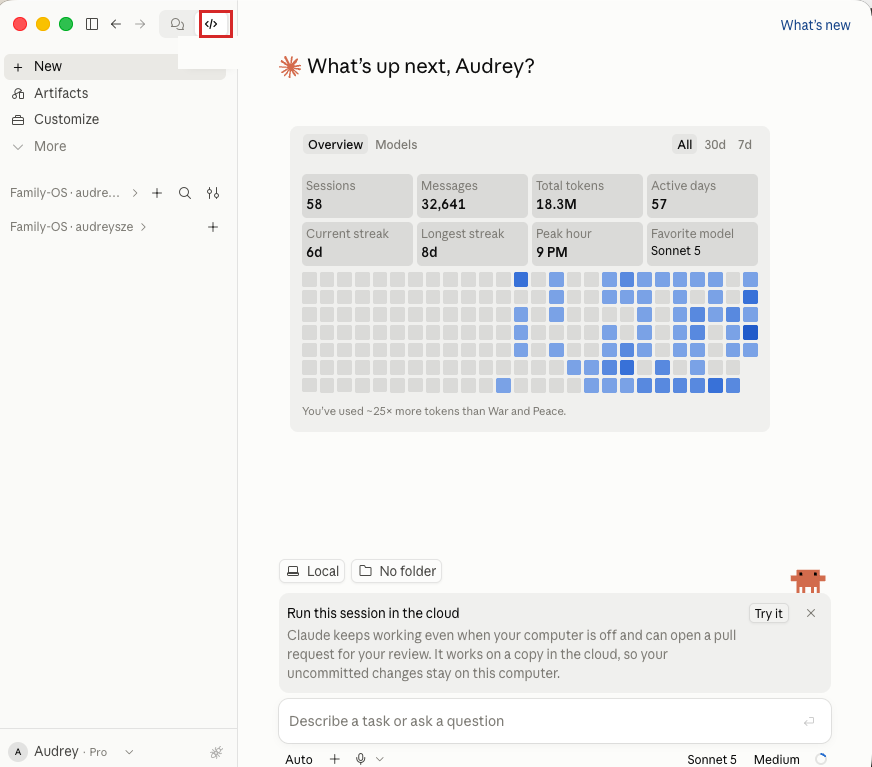
Before you do anything else, glance at two spots in the app to confirm you're set up correctly:
- Top-left chooser: Code should be selected (not Chat or Cowork). If you're in the wrong mode the whole screen will look different from these instructions.
- Bottom-left of the chat panel: the first button should say Local. That's the toggle that tells Code to run on your machine.
The screenshots show a Mac; labels can vary with app updates. On Windows, use File Explorer to select the same folder. Using another agent? Select Household OS as its working folder and ask it to read the interview.
aOpen the Claude desktop app and switch to the Code tab.Open Claude from Applications on Mac or the Start menu on Windows. Choose Code. If the app is not ready yet, follow the pre-workshop setup steps.
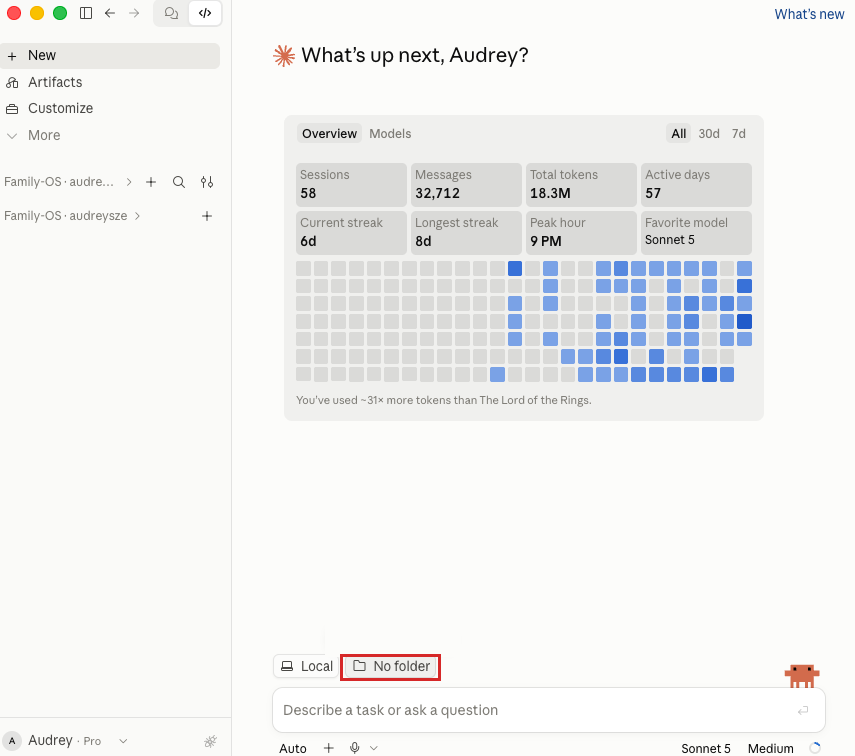
 bClick the folder button at the bottom.
Choose Local, then click the folder chooser. Depending on your app version, it may say “No folder” or “Select folder.”
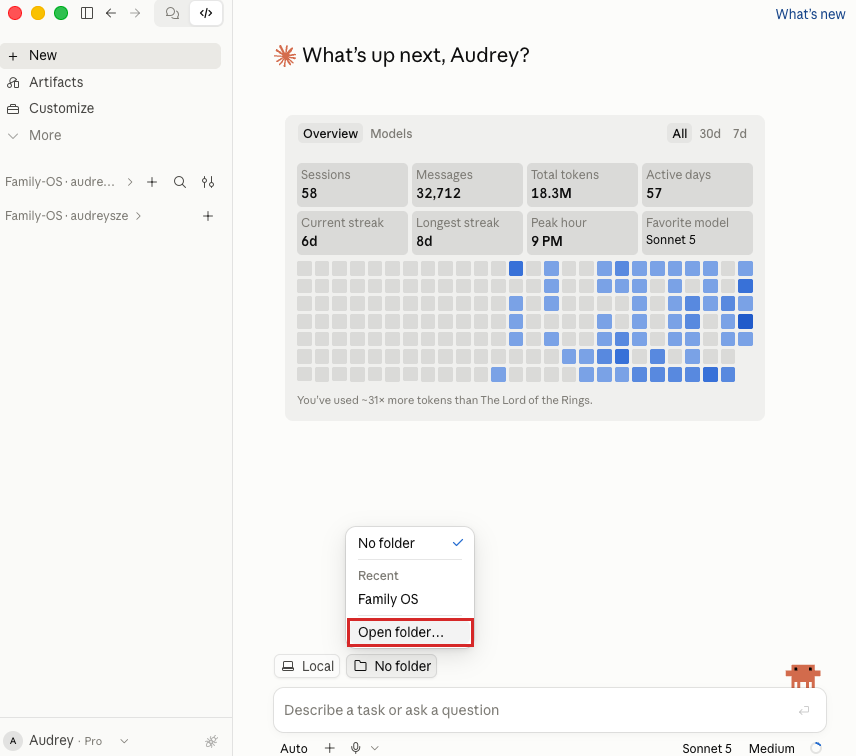
 cIn the dropdown, click Open folder…
Choose Open folder… or the equivalent folder-selection option. If Household OS is already listed, make sure it is the copy you want to work in.
 dFind and select your Household OS folder.
In the file picker, find the extracted Household OS folder in Downloads, or wherever you moved it. Select the folder containing
Setup Interview.md, then confirm your selection.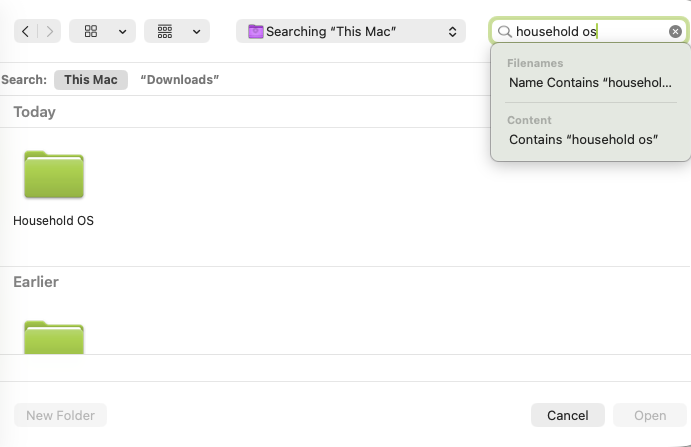 eConfirm the folder is selected.
Look at the folder button at the bottom of the Code panel — it should now say Household OS. This is the folder Claude should use for the interview and the exercises that follow.
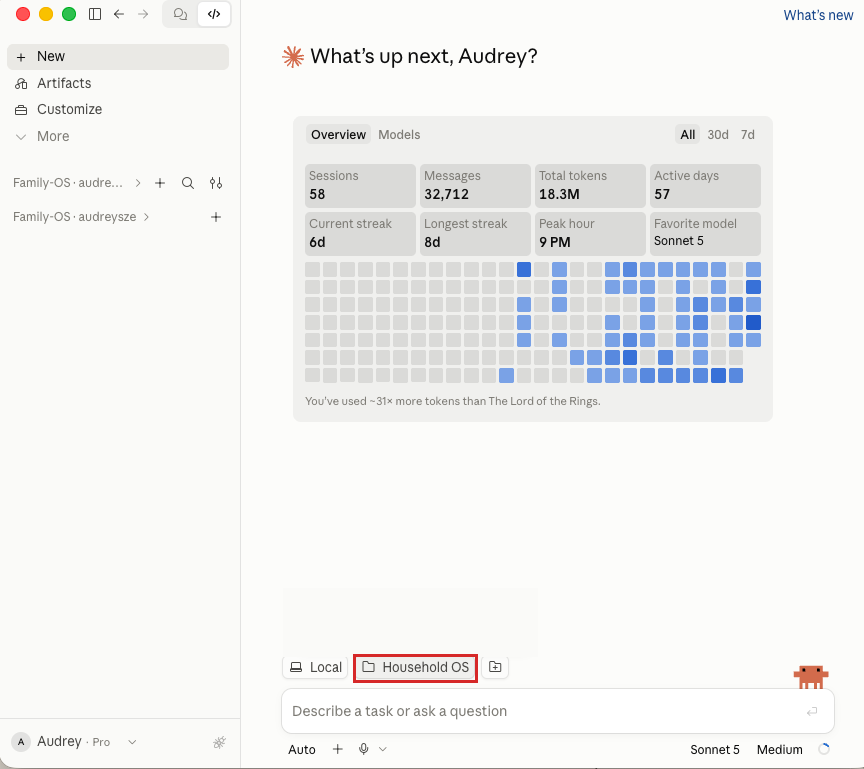 fCopy the prompt, paste it into Claude, and hit Enter.
Copy this into the task input in your Household OS session, then send it.
Start the interviewRead Setup Interview.md in this Household OS folder and follow its instructions. Let's do the setup interview.
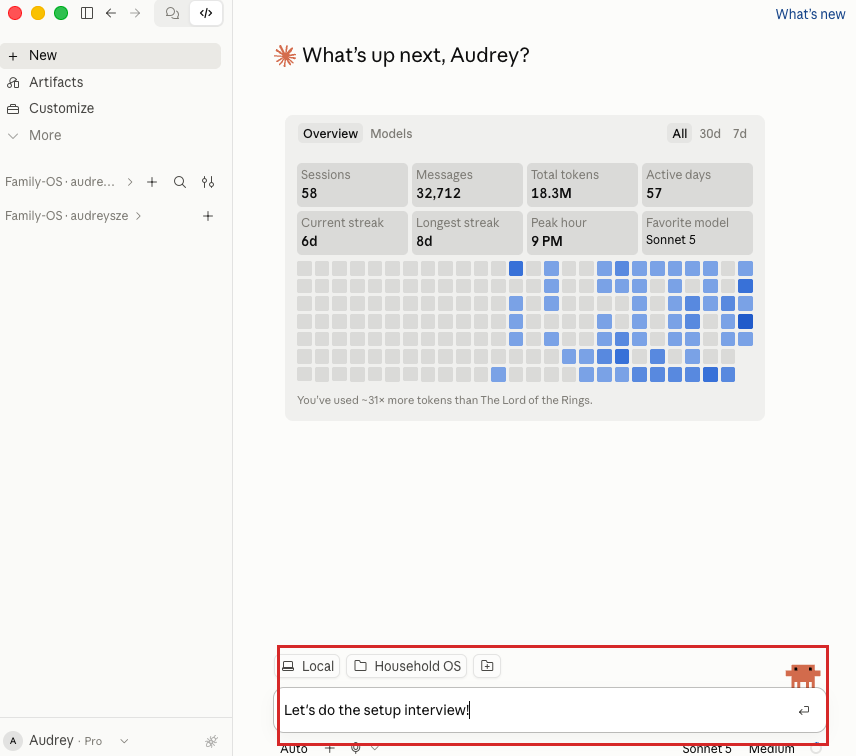 gAnswer the questions as Claude Code asks them.
Claude Code will find your
Setup Interview.mdfile, read it, and start asking you the first set of questions. Answer in the same conversation, typing or using dictation if available. Skip anything you prefer not to share. Claude will save relevant answers in01-Meand02-Familyas you go.Before you finish, open one of the files and check that it is accurate. Ask Claude to correct anything wrong and show where it saved the standing instructions. Only answered sections need files; empty folders are okay.
If your screen looks different or a permission request is unclear, pause and ask an instructor. You can also ask Claude to explain a screenshot after checking it for private information. Keep this Household OS folder selected for the meal planner and your own workflow.
You can see the files created from your answers, you've checked one for accuracy, and your agent has saved the standing instructions. Return to the group; the next activity is Audrey's worked example.